Gamepad
Gamepad, joystick and game controllers can be used in your game. Xbox, Playstation and generic controllers are supported.
This feature can be activated by adding the Gamepad extension to your project. You will then be able to use conditions and expressions to check if a gamepad is connected, if a button is pressed, released or if a stick is pushed.
Tip
Learn how to install new extensions by following a step-by-step guide.
Move a character
Move a top-down character
The "Top-down gamepad mapper" behavior can be added to the character to make the character move according to player inputs automatically. The default configuration will work without any change for single player games.

Tip
Learn more about the Top-Down Movement behavior.
Move a platformer character
The "Platformer gamepad mapper" behavior can be added to the character to make the character move according to player inputs automatically.

Tip
Learn more about the Platform Character behavior.
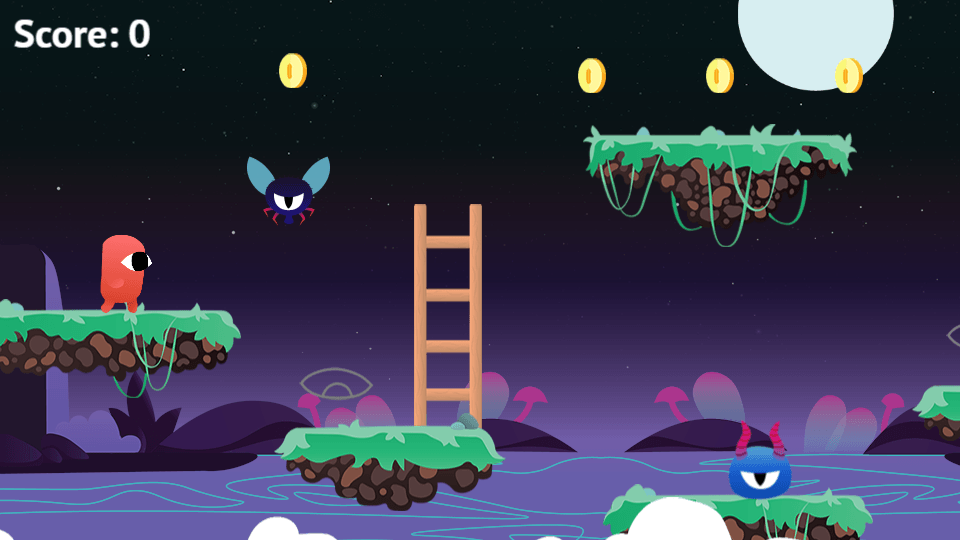
Move a 3D platformer character
The "3D platformer gamepad mapper" behavior can be added to a 3d physics character to make the character move according to player inputs automatically.
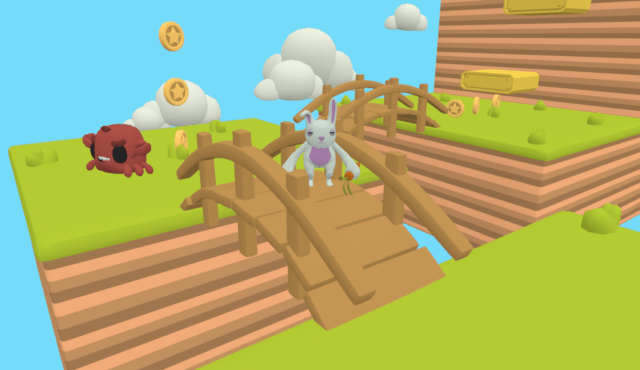
Move a 3D shooter character
The "3D shooter gamepad mapper" behavior can be added to a 3d physics character to make the character move according to player inputs automatically.
Move a character with custom movement
Handle pressed buttons
Detecting pressed buttons can be done with the Gamepad button pressed (or released) condition. Playstation and Xbox controllers have different button names, but checking for A or Cross is the same.

Handle sticks
Gamepads::StickAngle and Gamepads::StickForce expressions can be used to apply a force on an object.

For finer control, use Gamepads::StickForceX and Gamepads::StickForceY to get the individual axis values (ranging from -1 to 1). This is useful when you need to treat horizontal and vertical movement independently, for example to move a character along a single axis.
Handle analog triggers
The shoulder triggers (LT/L2 and RT/R2) on modern controllers are analog — they report a pressure value between 0 (fully released) and 1 (fully pressed). Use the Gamepads::TriggerPressure(gamepad, trigger) expression to read this value and apply graduated effects, such as variable acceleration or a charge mechanic.
Handle several players on the same device
Detect connected gamepads
Each gamepad connected to the computer or phone is numbered from 1 to 4:
- If your game is single player, you'll usually always use condition for the Gamepad 1.
- If your game is multi player, it's a good idea to use the Gamepad connected condition to check which gamepads are connected. You could store in a variable the gamepad number associated to a player. You can also force the first player to use the Gamepad 1, and the other player to use Gamepad 2.

Deadzone configuration
Small physical imperfections in analog sticks cause them to report non-zero values even when untouched. The deadzone is the radius around the center within which stick input is ignored. The default value is 0.2 (20% of the stick range).
Use the Set gamepad deadzone for sticks action to adjust this threshold per gamepad. Increase it if you notice drift on cheap controllers; decrease it for more responsive input on high-quality hardware.
Detect the controller type
Use the Gamepad type condition or the Gamepads::GamepadType(gamepad) expression to identify the type of controller connected (Xbox, PlayStation 4, PlayStation 3, Steam controller, etc.). This lets you display the correct button prompts in your UI — for example, showing an "A" icon for Xbox and a "Cross" icon for PlayStation.
Vibrate a gamepad
Use the action Gamepad vibration to make a gamepad vibrate.
Advanced Gamepad vibration allows to setup vibration magnitudes for low and high frequency rumble motors. Each player can have different rumble values.